Parametrized bookmarks
Reading time: 2 minLet's say you're working with a few Github repos at once and you want to easily jump to pull requests of each. Or you want to take a rest and easily jump to one of your favorite subreddits for a bit. You don't need to create a bunch of bookmarks for all of them, you just need one!
Parametrized bookmarks #
You create a bookmark like so: https://github.com/org-name/%s/pulls, you give it a name, for example, "pulls" and type "pulls service-name" in the address bar. You press enter and lo and behold, you will be properly pointed to the https://github.com/org-name/service-name/pulls website.
Same thing for the Reddit example. You create a bookmark like so: https://old.reddit.com/r/%s, you give it a name, for example, "reddit" and type "reddit subreddit-name". (Yes, I've used https://old.reddit.com, the superior version of Reddit 😄)
Notice the %s format specifier. If you've worked with C language in the past, you'll know that it denotes some string of arbitrary length. So whatever you write after the bookmark name, it will be placed instead of %s format specifier.
I've covered 3 of the most used web browsers: Firefox, Google Chrome and Edge. The same thing can be accomplished with Brave, while other browsers haven't been explored.
Firefox #
Go to Bookmarks -> Manage bookmarks from the hamburger menu and create a new bookmark like so:
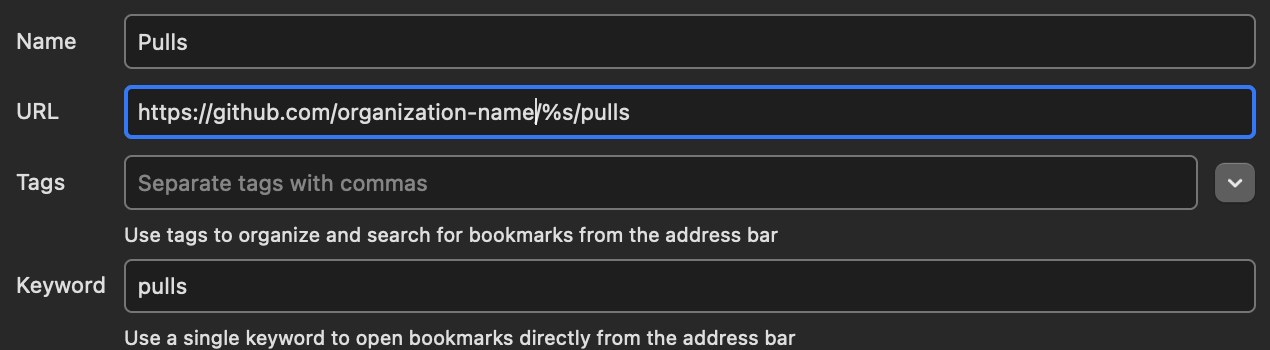
Then simply write "pulls" in the address bar and add the repo name, like so:

You notice straight away that the browser nows exactly where to go, to https://github.com.
Google Chrome #
In Google Chrome, it's a bit more complicated.
Enter chrome://settings/searchEngines into the address bar. There is a Site Search at the bottom. Click on add and fill in the fields, like so:
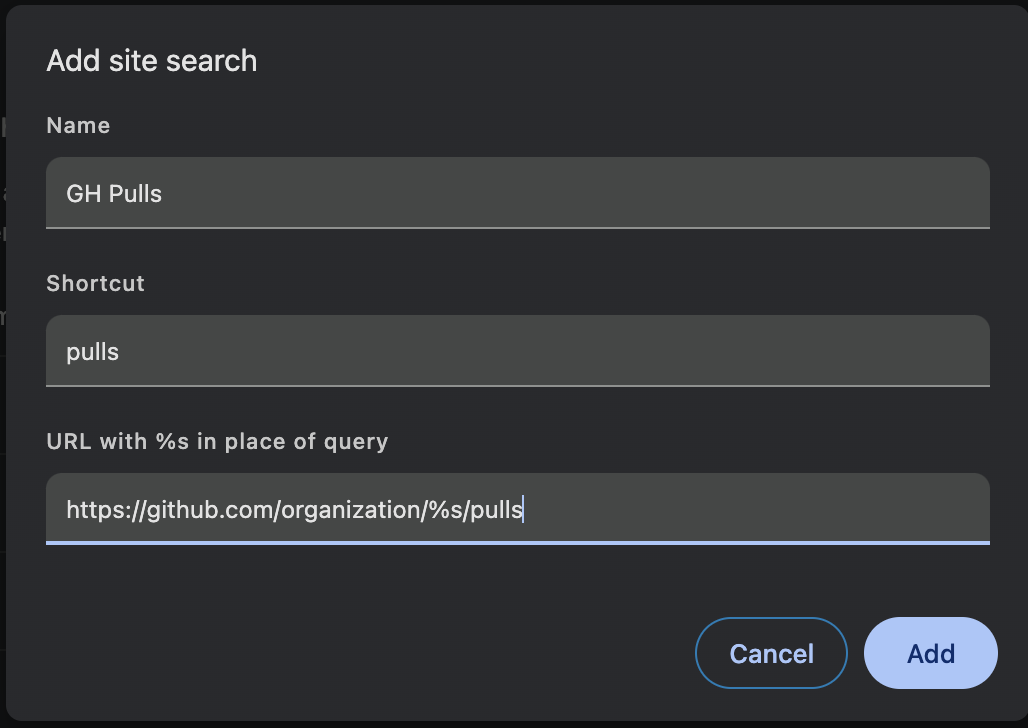
The end result should be exactly the same as in the Firefox.
Microsoft Edge #
The same process as for the Google Chrome, except for the settings url, which is: edge://settings/searchEngines